How To Use the Smart Switch App To Transfer Data Between Android Phones?
Whenever we buy a new Android phone, the first task we used to do is transfer important data. So, it mainly includes contacts, photos, videos, messages, apps, and device settings. Therefore, the Smart Switch App has been designed for Android users to conveniently move their data.
So, in today's article, I will explain the process of transferring data from one phone to another. This method is not only safe but also convenient and quick. To make the process further simple, I will share the steps.
How To Use the Smart Switch App To Transfer Data Between Android?
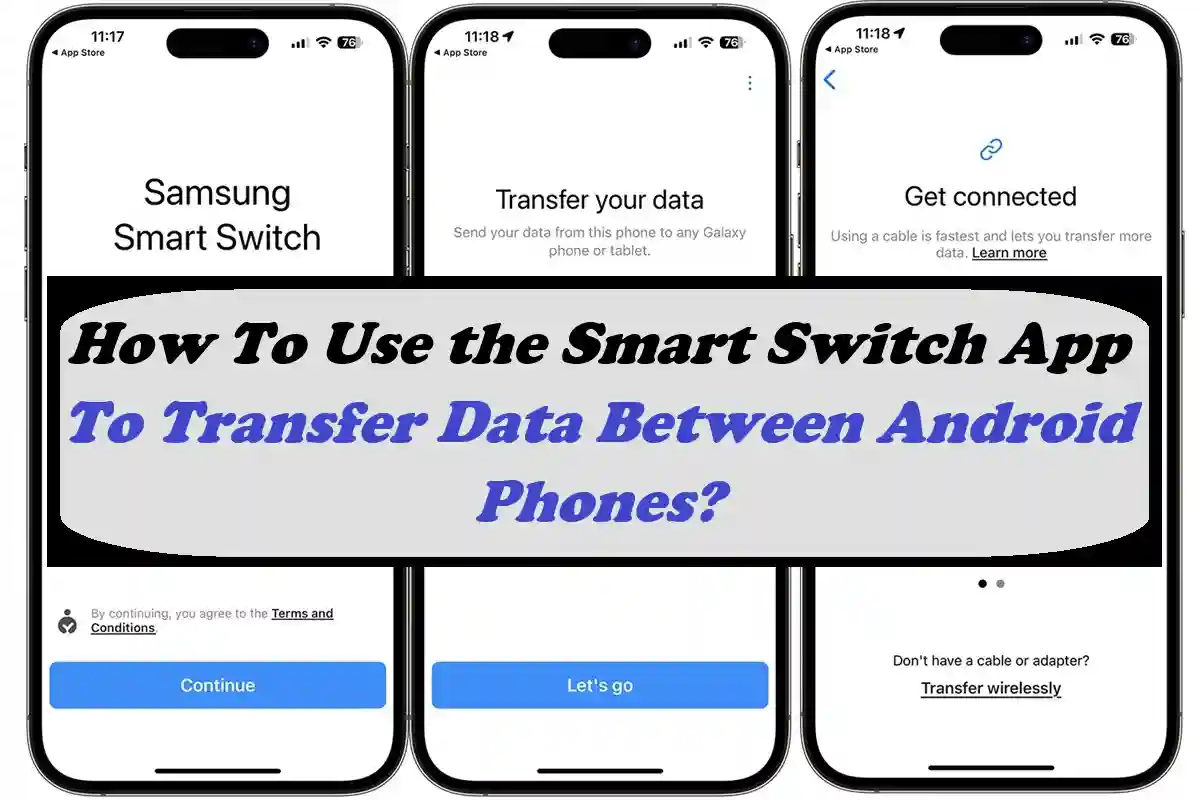
Smart Switch App is a free app made by Samsung, but compatible with all Android brands. It helps users to copy data from one Android device to another quite quickly. From mobile settings to multimedia files, contacts, and other data can be transferred via this app.
So, here are the steps through which you can transfer data between two Androids.
Prepare Both Phones
First and foremost, you have to make sure both of the devices are fully charged. If they turn off while processing data due to low charge, it will cancel the whole process. Secondly, you must enable the WiFi connection on both devices. More importantly, on both devices, you must have installed the Smart Switch App.
Open the Smart Switch App
Now you need to open the Smart Switch app on both devices and connect them. Once the devices are connected, you need to tap on the Send Data button and select the files you want to transfer. Thereafter, you have to tap on the Receive Data on the phone where you want to transfer the whole data.
Choose the Connection Method
To connect the devices, you can use either cable or WiFi. So, if you want to connect through WiFi, you don't need to use any cables.
Select what You want to Transfer
Once the devices are connected and you tap on the Send button, it will let you pick the files that you want to transfer. The Smart Switch app will scan your old device and provide a list of all the data. Now you can select the data and transfer that to the new phone.
Start Transfer
Tap on the Start button and wait for some time. So, it will show the completion message on your old phone's screen once it is done.